Setting up an automation can feel overwhelming when you don’t know where to start. So, let’s fix that! In this guide, I’ll walk you through how I built my first n8n workflow step by step, using a free AI API.
I built an n8n workflow that reads AI-related news every morning and uses a Groq-powered AI connection to email me a neat little newsletter. Best of all, I built the whole workflow in under an hour.
Let me set the scene here. You know how everybody on the internet says, “An AI agent literally runs my life while I sleep”? As it turns out, that is actually true with automations these days.
So, I got inspired, opened n8n, clicked on New Workflow, and pulled up the Claude extension. If you don’t have a paid plan for Claude or Gemini, you can always use their chat interface to ask questions. However, you can usually skip the YouTube tutorials, because every other day there’s a little change in the workflow, UI, features, or models, which can be overwhelming. Instead, use AI tools like Claude and Gemini to help you understand the workflow and set it up. (New to building with AI? Start with the things you need before you start vibe coding.)
What is an n8n Workflow?
Before we actually get into the setup, let’s understand what an n8n workflow really is. In simple terms, it is like a chain of steps that runs on its own: something starts, stuff happens, data is processed, and the result lands somewhere useful. In other words, that’s the whole definition!
Every workflow, no matter how fancy, has the same three parts:
- The trigger, the thing that says go: a time of day, a new email, a form submission.
- The middle bit, basically the funnel, where it fetches data, trims it, reshapes it, and maybe it also hands it to an AI to think about it and give a summarized version of it.
- The output, where the result goes: your inbox, Slack, a Google Sheet, a WhatsApp message. It can be literally anything.
In fact, it is fascinating to see how these automations have been getting better by the day.
Designing Your n8n Workflow First
Now the question is: how do you figure out what your workflow should look like before you touch any node? Fill in this one sentence out loud:
“Every [when], take [what data], do [what to it], and send it to [where].”
In my case:
“Every morning at 9 AM, take the latest AI news, summarize it, and send it to me over email.”
Mapping that sentence to canvas nodes:
- Every morning at 9 AM → Schedule Trigger node
- Take the news → RSS Read node
- Summarize it → AI / Basic LLM Chain node
- Send it to me → Gmail node
Congratulations! In other words, you basically designed a workflow without opening the app!
If you can’t finish the sentence, you don’t have a workflow problem — you have a “what do I actually want?” problem. Solve that first!
Understanding Nodes in n8n
A node is like one box on the canvas, and each box does exactly one job. A workflow is just nodes holding hands. Think of nodes like the staff at a very efficient restaurant kitchen:
- One person picks up the ingredients.
- One sorts and preps the veggies.
- The chef prepares and cooks the dish.
- The server delivers it to the customer waiting at the table.
That’s exactly how it works. In other words, nobody does everybody’s job.
Step-by-Step: How to Build an n8n Workflow for an AI News Digest
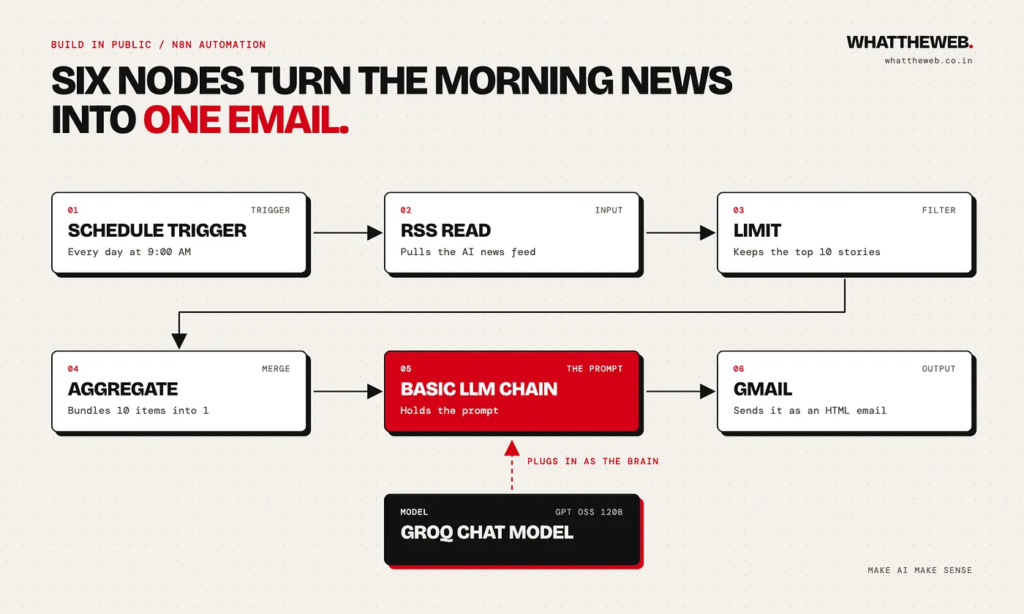
Overall, the whole n8n workflow consists of six nodes in a line, plus one AI model connected underneath to act as the brain.
Prerequisites
- Groq API Key: Create a free API key on Groq (console.groq.com), copy it, and keep it somewhere secure.
- Gmail Account: Have your target Gmail account ready to connect.
Workflow Setup
- Schedule Trigger: Add a Schedule Trigger and set it to run daily at 9:00 AM. Also, make sure to configure your exact time zone (e.g., Asia/Kolkata) so your brief arrives at the right time.
- RSS Read Node: Add the RSS feeds for news sources you want to track. For example, you can use AI to quickly find the RSS feed URL for any website.
- Limit Node: Set a limit (e.g., 7–10 stories) so you don’t get overwhelmed with too many articles at once.
- Aggregate Node: Add an Aggregate node set to “Aggregate All Item Data into a Single List.” This step matters because, without it, you would receive 10 separate emails instead of a single compiled digest.
- AI Processing Node: Add a Basic LLM Chain node and define your custom prompt (here’s how to structure a prompt that gets clean output). Under the model slot, attach the Groq Chat Model, paste your API key, and select your preferred model.
- Gmail Node: Finally, choose Send a Message, connect your account, and set the email parameters.
Test & Publish: Click Execute Workflow and check your inbox. Once it’s verified, hit Publish to set it on autopilot every day!
FAQs
What is n8n?
n8n is a visual workflow automation tool. You connect boxes called nodes on a canvas, and it runs tasks across your apps automatically, with or without AI.
Do I need to know how to code to use n8n?
No. The workflow in this article uses zero code. However, the only “code-looking” bits are short expressions like {{ $json.text }}, which you can copy and paste.
Is n8n free?
The self-hosted Community Edition is free. However, the cloud version, which is easier for beginners, has paid plans and a free trial. Check n8n.io for current pricing.
What is Groq, and is it the same as Grok?
No, and everyone mixes them up. Groq (with a Q) is a company whose API runs open-source AI models very fast. Grok (with a K) is the chatbot from xAI. This article uses Groq.
Why use Groq in an n8n workflow?
Because it’s fast, it has a free tier to start with, and n8n has a ready-made Groq Chat Model node, setup is just pasting an API key. Alternatively, Google AI Studio (Gemini) and OpenRouter also work well.
What’s the difference between a trigger node and other nodes in an n8n workflow?
A trigger node starts the workflow, like a schedule or a new email. Every other node does something with the data after that. A workflow needs one trigger to begin.
Why am I getting 10 emails instead of 1?
This happens because your items are going through the AI one by one. To fix it, add an Aggregate node set to “All Item Data (Into a Single List)” right before the AI step.
Why does my email show JSON or code instead of a nice newsletter?
Usually, this is because the AI is replying in JSON, or Gmail is sending as plain text. To fix it, tell the AI to output HTML only, and set the Gmail node’s email type to HTML.
Does the n8n workflow run when my laptop is off?
On n8n Cloud, yes, because it runs on n8n’s servers. However, if you self-host n8n on your own laptop, it only runs while that laptop is on.
Can I use a different news source?
Yes. Any site with an RSS feed works. Paste its feed URL into the RSS Read node, run the step, and check that articles appear.
How long does it take to build this workflow?
About an afternoon for a first-timer, including a snack break and at least one “why is it doing that.” After that, the second one takes about 20 minutes.