Short answer: Figma Make is Figma’s prompt-to-code tool. You type what you want, it builds a working, clickable app — real React, not a flat mockup. We’ve used it to ship eight things: a Gen Z gifting store, a supply-chain SaaS dashboard, a crypto branding site, a web app, a Netflix clone, an AI copywriting tool, a gamified SEO checklist, and a brand book.
Now the long answer, because “it builds apps” is what every landing page says and none of them tell you what actually happens at 2am when the prototype decides your e-commerce store should sell artisanal fog.
So here’s the full list, and what each one taught us:
- Happy Go Lucky — a Gen Z gifting e-commerce store, its companion gifting app, and a brand book
- POD (Proof of Drop) — a geotagging SaaS with a responsive dashboard and mobile routes
- CoinMarketCap branding site — a crypto brand site concept, plus a UI exploration
- Unleash E — a web application build
- LUCKFLIX — a Netflix clone, built as a birthday gift, now live
- Second Brain — an AI copywriting app with a keyword-to-ideas engine
- Article Architect — a gamified AEO + SEO writing checklist
- A high-fidelity interactive prototype — the one where we stopped fighting the tool and learned to brief it
What is Figma Make, in plain English?
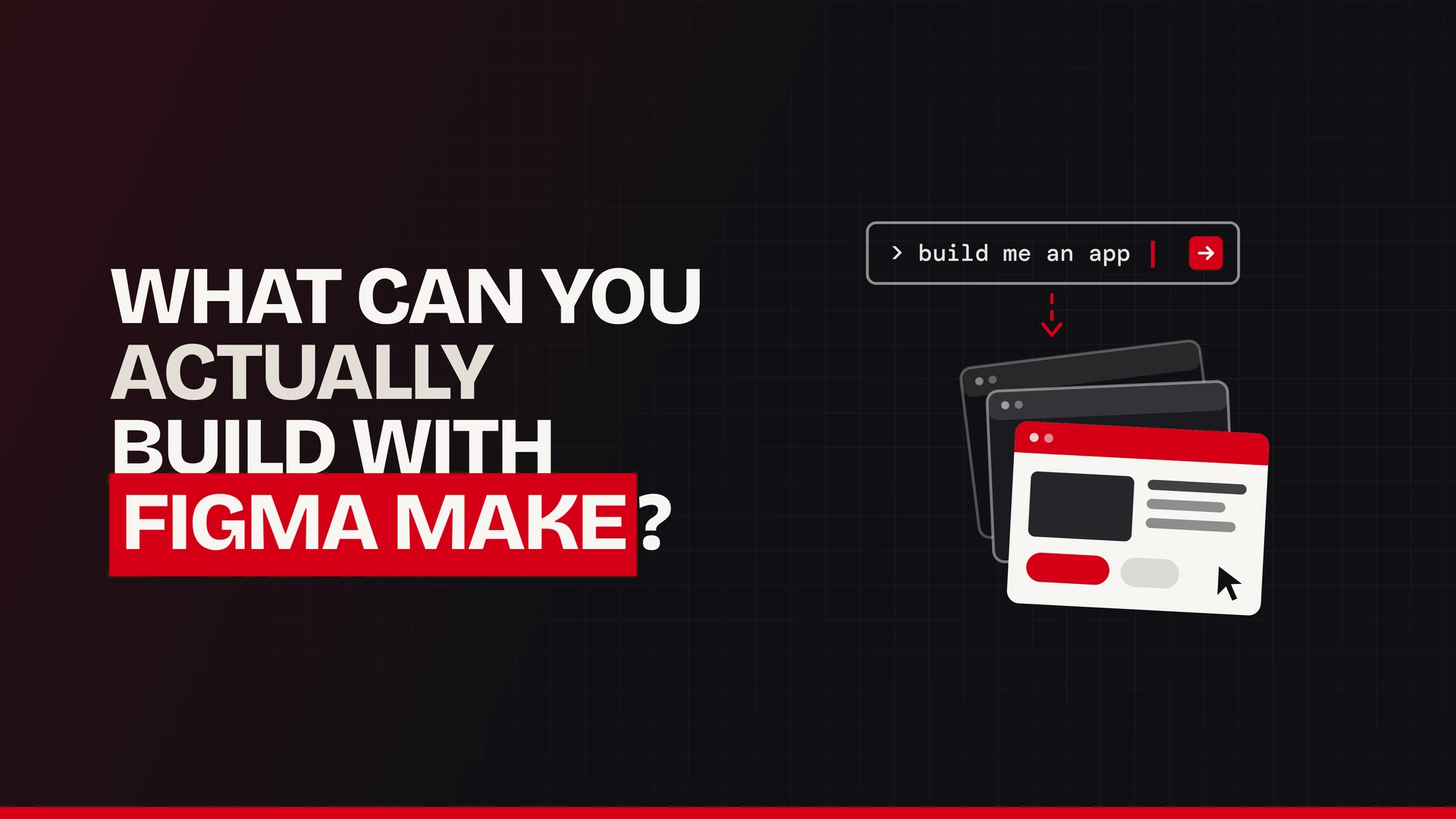
In plain terms, Figma Make turns a text prompt into a working web app. Figma’s own tagline for it is “prompt to code anything you can imagine”, and that is roughly accurate, give or take the imagination.
The difference from regular Figma Design matters:
- Figma Design gives you rectangles that look like a button. Beautiful, static, a lie.
- Figma Make gives you a button that clicks, routes somewhere, holds state, and can talk to a key-value backend.
- Figma Sites publishes a marketing page. Different job.
Things worth knowing before you open it:
- First, it sits on Full seats of paid Figma plans. Not a free-tier toy.
- Second, it runs on a credit system, shared with Figma’s other AI features. Per Figma’s own help docs, generating an app from scratch starts around 100+ credits, making an existing design interactive around 75+, and changing a font around 30+. Full seats get roughly 500 to 4,250 credits a month depending on plan, and they do not roll over.
- Also, you can pick the model. We ran most of Article Architect on GPT-6.1 Sol. Fancier models eat credits considerably faster.
- You can attach a Figma Design file as context, so Make reads your existing screens instead of inventing a visual language from scratch.
- Plan mode makes it write a structured plan before touching code. In other words, you argue with the plan first. Use it. We’ll come back to why.
- Finally, teams can load a real production design system into Make through Make kits, which pull components from an npm package so prototypes use the same code as the live app.
Figma’s Make credit documentation · Make kits and design system packages
Why we stopped designing every screen from scratch
Because the blank artboard was winning.
The honest backstory: although we build websites and apps, we are not classically trained UI designers. We’re a vibe coder with a marketing brain and strong opinions about colour. As a result, that combination produces two failure modes — either you stare at an empty frame for three hours, or you build something that works fine and looks like every other AI app on the internet.
Figma Make fixed the first problem immediately. However, not the second. Eventually, the second one took a prompting system, which is further down this page.
What actually changed in the workflow:
- Screen zero now takes four minutes, not four hours. You describe the app, you get something clickable, and you start reacting instead of inventing. After all, reacting is much easier than inventing.
- Clients can click the thing. For instance, a static mockup gets “hmm, nice.” A prototype where the cart opens gets real feedback, which is the only kind worth having.
- It catches missing screens for you. In fact, every build so far has surfaced a screen we forgot — empty states, 404s, the password reset nobody plans for.
- It de-risks the expensive part. For example, finding out a layout doesn’t work costs 100 credits in Make. Finding out in Xcode costs a weekend.
1. Happy Go Lucky — a whole gifting brand, in three Make files
What it is: a Gen Z gifting e-commerce brand built for a client. Thoughtful gifts, fairly priced, the kind where the recipient thinks “I’m so lucky someone gifted me this.” Jester archetype. Handwritten letters in the box. Black rubber stamps instead of printed stickers, because the launch budget said so.
What Figma Make built: three separate files doing three jobs.
- Happy Go Lucky Store — the responsive storefront. The brief was a mash-up: PropShop24’s mobile-first layout, The Bombay Store’s colour sensibility and clean, grown-up calm.
- Happy Go Lucky Gifting App — the companion app flows.
- Happy Go Lucky Brand Book — yes, we built the brand book in Make too. Palette, type, voice rules, all of it as a browsable document rather than a PDF nobody opens.
What went right: the storefront skeleton arrived in one prompt. Product grid, cart, category nav, mobile breakpoints. Make is genuinely good at e-commerce because e-commerce is the most patterned thing on the internet.
What we had to fight: the palette. The first pass was, of course, the standard AI-pastel-gradient situation. Specifically, getting to a palette that felt quirky-but-rooted took explicit colour instructions, not vibes — hex codes, where each one is allowed to appear, and a hard rule against the tool adding its own.
Also worth saying: the name changed mid-build, from Mitvah to Happy Go Lucky. Notably, Make did not care. Renaming across a prototype is a find-and-replace, not a redesign. Try that in a 40-frame static file.
See it: [ADD FIGMA MAKE SHARE LINK — Happy Go Lucky Store] · [ADD LINK — Gifting App] · [ADD LINK — Brand Book]
2. POD (Proof of Drop) — the SaaS that made Make earn its seat
What it is: a geotagging SaaS for supply chain and e-commerce fraud. Parcels get photographed, geotagged and timestamped at every handoff, so “it arrived damaged” and “it never arrived” stop being unfalsifiable. Fake damage claims. AI-faked damage photos. Parcel swaps. Delivery agents having a day. In short, POD is the receipt.
What Figma Make built: the hardest thing on this list — a business-facing responsive dashboard and a mobile capture app, in one file.
The decision that saved us weeks: one Make file, one codebase. Shared responsive routes, plus mobile-only routes for the camera capture flow. Certainly not a separate mobile project pretending to be a sibling. One source of truth, one design language, one thing to maintain.
What went right: dashboards are dense and boring to lay out by hand — tables, filters, status chips, empty states, auth screens. Make produced the whole scaffold and we spent our time on the parts that actually needed thought: the capture flow, and what a “proof” record looks like when a dispute lands.
What we had to fight: credibility. Naturally, a fraud-prevention product cannot look like a toy. Again, the first pass was friendly and rounded and completely wrong for a logistics manager at 7am. Therefore, the fix was a reference-led prompt — clean fintech, Linear-adjacent, boring on purpose.
Status: the iOS MVP is being built on Capacitor + Vite, starting with live-camera capture.
See it: [ADD FIGMA MAKE SHARE LINK — POD Proof Dashboard]
3. CoinMarketCap branding site — using Make as a pitch weapon
What it is: a branding website concept for CoinMarketCap, built alongside a separate CoinMarketCap UI exploration.
Why it exists: this is the underrated use of Figma Make. Not building your own product — building the thing you wish a brand would let you build, and then showing it to them.
Crypto brand sites have a specific problem: they all look like a dark-mode terminal that went to finishing school. The exploration was about whether a data-heavy crypto brand can feel like a brand and not a Bloomberg screen.
What went right: speed of iteration. Obviously, a spec concept only earns its keep if it’s cheap. Three visual directions in an afternoon is cheap. By contrast, three visual directions as hand-built static frames is a week you’ll never bill for.
What we had to fight: Make really wants to give crypto products the same purple gradient. Every time. The anti-slop prompt further down this page exists largely because of this file.
See it: [ADD FIGMA MAKE SHARE LINK — Branding website for CoinMarketCap]
4. Unleash E and the high-fidelity prototype — the boring, important ones
Two files, one lesson, so we’ll put them together.
Unleash E web application was a straight web app build — the kind of project where there’s no clever concept to hide behind and the work is just: are the flows right, do the states exist, does it hold up on a laptop and a phone.
The high-fidelity interactive prototype was the file where we stopped treating Make like a vending machine. Instead of one giant prompt, we used plan mode — Make writes a structured plan, you argue with the plan, then it writes code. Per Figma’s docs, building the approved plan costs extra credits. It also costs dramatically fewer credits than discovering on build four that the information architecture was wrong.
The lesson from both: micro-interactions are where Make stops feeling like a mockup tool. Hover states, transitions, loading shimmer, the little delay before a toast appears. Make will add these if you ask for them specifically, and it will skip them entirely if you don’t. Ultimately, a prototype without micro-interactions reads as unfinished even when every screen is there.
See it: [ADD FIGMA MAKE SHARE LINK — Unleash E] · [ADD LINK — High-Fidelity Interactive Prototype]
5. LUCKFLIX — the one that’s actually live
What it is: a Netflix clone. Built as a birthday gift. The “catalogue” is my boyfriend’s band’s YouTube videos, laid out like a streaming service, because the alternative was a card.
Live at luckflix-phi.vercel.app — click it, it’s real.
What Figma Make built: the whole Netflix shell. Hero banner, horizontal scroll rows, hover-to-expand cards, the dark chrome. Make nails this because the Netflix layout is possibly the most-documented interface pattern in existence.
What happened next is the actual story: we started in Figma Make and finished in Claude Code.
Yet that is not a failure of Make. That’s the correct handoff. Rather, Make got the layout, the hierarchy and the feel locked in fast, with no arguing about whether a row should scroll. Then the build moved to Claude Code for the real YouTube embeds, the data layer and the Vercel deploy. Design decisions in Make, production code elsewhere.
Consequently, this is the pattern we now use on almost everything: Make for the what, a coding agent for the how.
6 and 7. Second Brain and Article Architect — two AI tools, two very different lessons
Second Brain — where Make taught us about briefs
What it is: an AI copywriting app. Feed it a keyword — “Nutella” — and it returns a cloud of 20 to 30 related words, content angles and hooks, structured in three layers: functional associations, emotional triggers, and identity angles.
The visual brief: “doodle come to life.” Colourful, Bento-grid, edgy rather than childish. In particular, not the dark node-graph look every second-brain app defaults to.
The lesson, and it’s a good one: the first Make frame came back beautiful and wrong. Its placeholder content was generating short-story narrative copy instead of advertising and marketing copy. The layout was right. The meaning was off.
That’s the Figma Make failure mode nobody warns you about. Importantly, it doesn’t break loudly. Instead, it confidently fills your app with content from an adjacent universe, and because it looks finished, you don’t notice for twenty minutes.
Article Architect — the gamified checklist
What it is: a gamified web app that walks writers through seven phases of AEO + SEO blog writing — Topic & Intent, Outline, Writing, Formatting, Pre-Publish, Publish & Promote, Track & Monitor — with live feedback and progress tracking.
The build: designed in Figma Design, prototyped through Make, running on GPT-6.1 Sol as the selected model. Apple-style design system, glassmorphism, teal accent (#14B8A6), blue-to-purple gradient CTAs.
The lesson: gamification is state, and state is where Make gets interesting. Progress bars, phase unlocking, completion feedback — none of that can be faked in a static file. Therefore, you either prototype it live or you ship it blind.
See them: [ADD FIGMA MAKE SHARE LINK — Second Brain] · [ADD LINK — Article Architect]
What is Figma Make genuinely good at?
After eight builds, the honest list:
- Patterned interfaces. E-commerce, dashboards, streaming layouts, onboarding flows. Anything with a million prior examples, Make does in one prompt.
- Screen zero. Certainly, beating the blank file is worth the subscription on its own.
- Responsive out of the box. POD needed desktop dashboard plus mobile routes from one file. Overall, it handled it.
- Clickable client reviews. Feedback on a working prototype is an order of magnitude more useful than feedback on a picture.
- Finding your missing screens. Empty states, 404s, error pages, the help screen you forgot.
- Cheap pivots. Rename a brand, swap a palette, restructure a flow — minutes, not a rebuild.
- Reading your existing design file. Attach a Figma Design file as context and it works inside your visual language instead of inventing one.
- Spec work. Building the concept nobody asked for, to get the client who hasn’t hired you yet.
Where does Figma Make fall apart?
Equal time, because an article that only praises a tool is an ad.
- The generic AI look. Left alone, Make produces the same soft gradient, same rounded card, same friendly sans-serif. Besides, every AI builder has a house style, and the house style is “pleasant and forgettable.”
- Invented content. Indeed, this is the big one. Make fills your prototype with plausible filler, and plausible filler is harder to catch than obvious filler. For example, Second Brain got short-story copy in a marketing app and it took a while to notice.
- Credits disappear faster than you plan for. Figma’s own numbers: 100+ credits to generate an app from scratch, more for complex ones, and a premium model multiplies that. Moreover, undoing an AI action does not refund the credits.
- Finally, it is not your production codebase. You can go Make-to-production through Make kits and the Figma MCP server, but if your stack is Capacitor, Next.js or anything bespoke, treat Make output as a reference implementation, not the shipping build.
- Complex, novel interactions. A 3D elevator portfolio or a WebGL scroll experience is not a Make job. That’s Three.js and GSAP and a coding agent.
The anti-slop rule we now paste into every brief
Problem 2 got solved with a boilerplate we put at the top of every prompt, and it has saved more time than any other single thing on this page:
Use only the content I explicitly provide. Do not invent additional text, headings, labels, product names or body copy. Where a value is missing, leave it empty or mark it TODO rather than fabricating it. Do not add decorative or explanatory text I did not request.
Short, blunt, works. So use it.
How do you write a good Figma Make prompt?
Stop describing the app. Instead, describe the constraints. Make is excellent at generating and terrible at restraint, so your prompt’s job is to be the restraint.
Our structure, in order:
- What it is, in one line. “A gifting e-commerce storefront for 18 to 30 year olds.”
- Two reference products, and what to take from each. Not “make it modern.” Say: layout from this, colour from that. This single move killed more AI-slop output than anything else we tried.
- The anti-slop rule, pasted verbatim from the section above.
- Exact colours and type. Hex codes. Font names. Where each colour is allowed to appear. “Playful” means nothing. “#D40016 on CTAs only” means something.
- The screen list. Every screen, named. Including the unglamorous ones: empty state, 404, 500, settings, privacy policy, help.
- The interaction notes. Hover, transition, loading, toast. Ask for micro-interactions explicitly or you will not get them.
- One hard constraint. Ours is usually load time, which is non-negotiable on every build.
Copy-paste template
Build a [type of app] for [audience].
References: layout like [product A], visual tone like [product B].
Take [specific thing] from A and [specific thing] from B. Nothing else.
CONTENT RULE: Use only the content I provide below. Do not invent text,
headings, labels or product names. Missing values stay empty or marked TODO.
No decorative or explanatory copy I did not request.
Brand: primary [#HEX] (CTAs only), surface [#HEX], text [#HEX].
Type: [headline font] for headings, [body font] for body.
Screens: [list every screen, including empty state, 404, 500, settings].
Interactions: [hover states, page transitions, loading states, toasts].
Hard constraint: [e.g. must load fast on 4G; must work at 375px].
Content to use:
[paste your real copy here]
Run it in plan mode first. Argue with the plan. Then build.
Figma Make vs Claude Code vs Cursor: which one when?
Actually, they are not competitors. They are three stages of the same job, and using the wrong one at the wrong stage is how projects die.
| Figma Make | Claude Code | Cursor | |
|---|---|---|---|
| Best at | Deciding what the thing looks like | Building and shipping the real thing | Living in an existing codebase |
| Use it for | Screen zero, client demos, spec work, pivots | Production code, deploys, integrations, debugging | Refactors, file-by-file edits, 3D and WebGL work |
| Output | Clickable React prototype inside Figma | Real repo, real deploy | Edits in your own project |
| Where it struggles | Novel interactions, your bespoke stack | Visual exploration from nothing | Also not a design tool |
| Our use | All 8 projects on this page | LUCKFLIX, MCP Console, snap-strip | Ferrari World, Adverie, AirAsia |
The workflow we’ve landed on: Make decides, a coding agent builds, Vercel or the App Store ships. Make is the fastest way to stop arguing about what the product is. Still, it is not the fastest way to put it in front of users.
Frequently asked questions
What can you build with Figma Make? Working, clickable web apps from a text prompt. We’ve built e-commerce storefronts, a SaaS dashboard with mobile routes, a streaming-style site, two AI tools, a brand book and several brand site concepts. It’s strongest on patterned interfaces and weakest on novel, custom interactions.
Figma Make pricing and credits
Is Figma Make free? No — it requires a Full seat on a paid Figma plan, and it also runs on AI credits. Starter plans and View seats are capped at 150 credits a day; Full seats get roughly 500 to 4,250 credits a month depending on plan, and unused credits don’t roll over.
How many credits does Figma Make use? Per Figma’s documentation: around 30+ credits to change a font, 75+ to make an existing design interactive, and 100+ to generate an app from scratch. Naturally, complex apps and premium models cost significantly more. Undoing an action doesn’t refund credits.
Figma Make vs other tools
Can Figma Make build a real, production app? Basically, it builds real React. Whether it’s production depends on your stack. Teams can load a production design system into Make through Make kits and deploy via the Figma MCP server. For a custom stack — Capacitor, bespoke Next.js — treat Make as the design source and build production elsewhere. That’s what we did with LUCKFLIX.
Figma Make vs Figma Design — what’s the difference? In short, Figma Design produces static visuals, while Figma Make produces running code. Design is where you draw the button; Make is where the button works.
Using Figma Make day to day
Can Figma Make use my existing design file? Yes. Attach a Figma Design file to the prompt and Make reads it as context, so it builds inside your existing visual language. Note that larger, denser files consume more credits.
Why does everything Figma Make builds look the same? Because you’re letting it choose. Give it two named reference products, exact hex codes, specific fonts, and a rule against inventing content, and the generic look largely disappears.
Which AI model should I use in Figma Make? Of course, Make lets you pick. We ran Article Architect on GPT-6.1 Sol. Figma notes that different models carry different credit costs, so match the model to the job rather than defaulting to the most expensive one.
Is Figma Make good for non-designers? Actually, it’s arguably better for non-designers. If you can write a clear brief, you can get a usable interface. What it won’t do is supply the taste — that still comes from you, encoded as constraints in the prompt.
How long does a Figma Make build take? First usable screens in minutes. A properly briefed multi-screen app, with revisions, in an afternoon. The Happy Go Lucky storefront skeleton arrived in a single prompt; getting the palette right took considerably longer than getting the layout right.