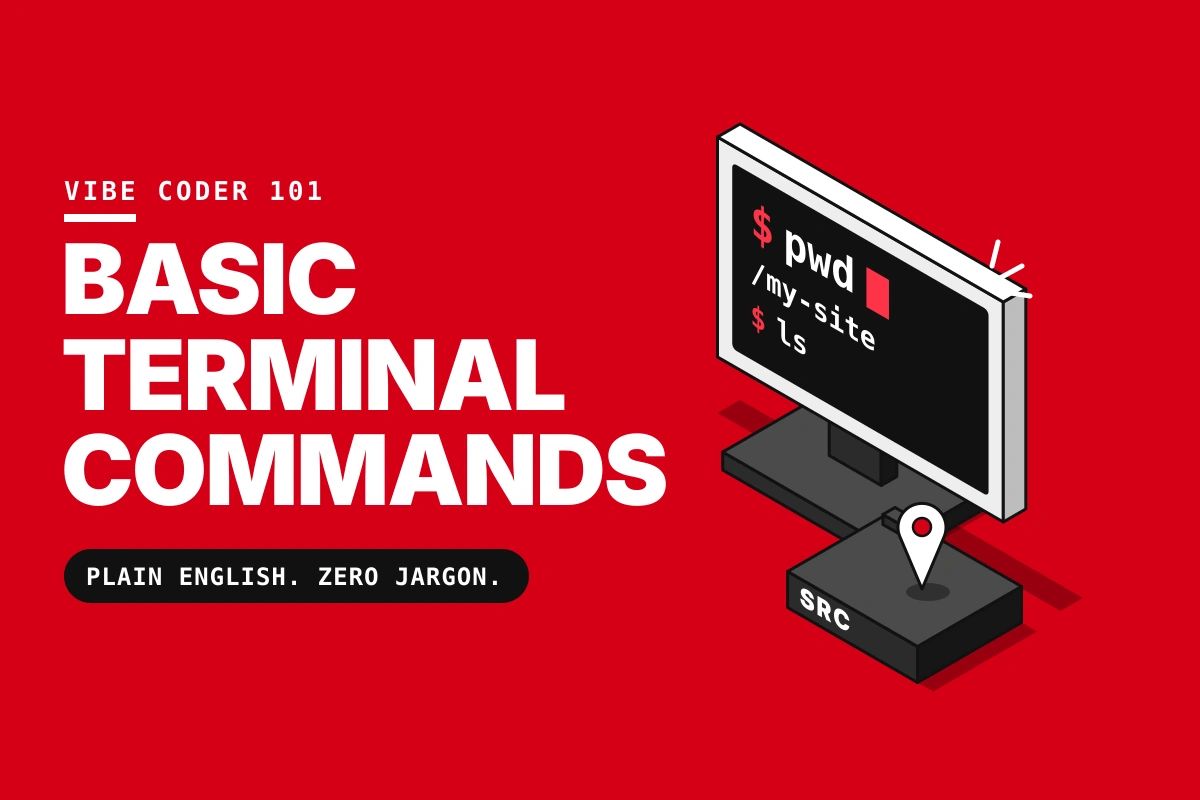
The terminal is a plain text window where you type short commands to tell your computer what to do. Ten of them cover most of what a beginner needs to move around a project and stay in control: pwd, ls, cd, mkdir, touch, cp, mv, rm, cat and grep. This guide is for vibe coders, people who build with AI tools. It explains each one in simple words, with its full form, and needs no coding background.
Why learning basic terminal commands matters
Most people meet a project through buttons and screens. The terminal shows you what sits behind them. Every folder, every file, every hidden setting is right there in text, and you decide what happens next.
Here is why that is worth an afternoon of your time:
- You see the whole project. Screens show you the finished page. The terminal shows you the folders and files that make it work.
- You stay in control. Buttons and AI tools hide steps from you. Commands make every step visible, so nothing happens that you did not ask for.
- You get unstuck faster. When something breaks, the error message usually appears in the terminal. Reading it is the first step to fixing it.
- Almost every tool you build with speaks terminal. Git, npm, Vercel, Claude Code and most deployment tools all run from here.
- It saves time. Once you know the commands, moving through a project takes seconds.
Think of this as your first door into the backstage of the web. Once you can walk around a project in the terminal, you start to understand what connects with what, and why things work the way they do.
What is the terminal, in simple words?
The terminal is a window where you type instructions instead of clicking. Each instruction is called a command. A small program called the shell reads your command and makes the computer do it.
A few words you will see often:
- Directory: another word for folder.
- Path: the address of a file or folder, like
Documents/my-site. - Working directory: the folder you are standing in right now.
Basic terminal commands at a glance
Here is every command in this guide, with its full form and what it does in plain words. Some commands, like touch and find, are not abbreviations. They are just short names, and the table says so.
| Command | Full form | What it does |
|---|---|---|
pwd | Print Working Directory | Shows which folder you are in right now |
ls | List | Shows what is inside the current folder |
cd | Change Directory | Moves you into another folder |
clear | Clear | Cleans the screen (deletes nothing) |
mkdir | Make Directory | Creates a new folder |
touch | Not an abbreviation | Creates an empty file |
cp | Copy | Copies a file or folder |
mv | Move | Moves or renames a file or folder |
rm | Remove | Deletes a file for good |
rmdir | Remove Directory | Deletes an empty folder |
cat | Concatenate | Prints a file’s contents on the screen |
less | A joke on the older more command | Lets you scroll through a long file |
head | Not an abbreviation | Shows the first lines of a file |
tail | Not an abbreviation | Shows the last lines of a file |
echo | Not an abbreviation | Prints text back at you |
grep | Global Regular Expression Print | Searches for words inside files |
find | Not an abbreviation | Finds files by name |
which | Not an abbreviation | Shows where a program lives on your computer |
man | Manual | Opens the help page for a command |
history | History | Lists the commands you typed before |
sudo | Superuser Do | Runs a command with admin powers |
chmod | Change Mode | Controls who can read, change or run a file |
Navigating with basic terminal commands: find your way around
These commands answer three questions. Where am I? What is here? Where do I go next?
1. pwd: Print Working Directory
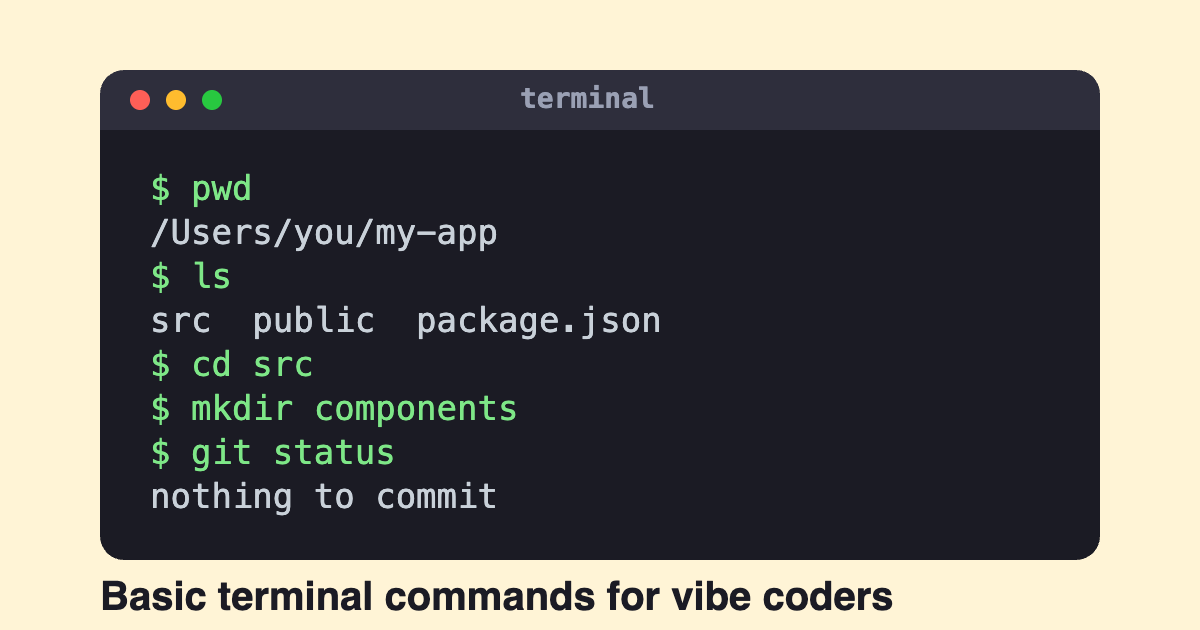
Shows the full address of the folder you are standing in. Run it any time you feel lost. You will see something like /Users/yourname/projects/my-site.
2. ls: List
Shows the files and folders inside your current folder. Two small additions make it far more useful:
ls -ashows hidden files too. Many important project files start with a dot, like.gitand.env, and they stay invisible without this. Theastands for all.ls -lshows a detailed list with sizes and dates. Thelstands for long.
3. cd: Change Directory
Moves you into another folder. Typing cd my-site takes you into a folder called my-site. A few shortcuts save time:
cd ..goes up one folder.cd ~goes straight to your home folder.cd -jumps back to the folder you were in before.
4. clear
Wipes the screen so you can start fresh. It deletes nothing. Your files and history stay exactly where they were.
Three address shortcuts worth knowing
.means the folder you are in...means the folder above it.~means your home folder.
Try this now: type pwd, then ls, then cd into any folder you see, then pwd again. You just walked through your computer using only text.
Creating and organizing: basic terminal commands to build and tidy your project
Once you can move around, you can start shaping things.
5. mkdir: Make Directory
Creates a new folder. mkdir images makes a folder called images inside your current folder. Tip: avoid spaces in folder names. Use dashes or underscores instead, because spaces confuse the terminal.
6. touch
Creates an empty file. touch notes.txt gives you a blank file called notes.txt. The name is not an abbreviation. It comes from the idea of “touching” a file to update its timestamp, and if the file does not exist, it gets created.
7. cp: Copy
Makes a copy of a file. cp notes.txt notes-backup.txt leaves the original untouched and creates a second file. To copy a whole folder, add -r, which means include everything inside it.
8. mv: Move
Moves a file to another place, and it also renames. Both jobs use the same command:
mv notes.txt images/moves the file into the images folder.mv old-name.txt new-name.txtrenames it.
9. rm: Remove
Deletes a file for good. There is no recycle bin and no undo. rm notes.txt removes that file the moment you press Enter. Adding -r deletes a folder and everything inside it, so check your location with pwd first.
10. rmdir: Remove Directory
Deletes a folder, but only if it is empty. That makes it a safer way to clean up, because it refuses to delete anything that still holds files.
Reading and finding: basic terminal commands to look inside your files
These commands let you peek into a project without opening an editor.
11. cat: Concatenate
Prints the contents of a file on your screen. cat package.json shows you what is inside that file. The name comes from “concatenate”, which means joining files together, but most people use it simply to read.
12. less
Lets you scroll through a long file one page at a time. Press the space bar to go forward and q to quit. The name is a joke on an older command called more.
13. head and tail
head shows the first lines of a file. tail shows the last lines. Both show 10 lines by default. tail is handy for checking the newest messages in a long log file.
14. echo
Prints whatever text you give it back to you. echo hello prints hello. It looks silly, but builders use it to check what a setting or message contains.
15. grep: Global Regular Expression Print
Searches inside files for a word or phrase and shows every line that contains it. grep title index.html lists the lines in index.html that mention title. Add -r to search through a whole folder, which answers the question “where in my project did I use this word?”
16. find
Finds files and folders by name. find . -name "*.png" looks through the current folder and everything inside it for files ending in .png. The star means “anything”, so it matches every image with that ending.
17. which
Shows where a program lives on your computer. which node tells you the exact location of Node, or shows nothing if it is not installed. That makes it a quick way to check whether a tool is set up.
Getting unstuck with basic terminal commands: shortcuts, help and safety
These small tricks make the terminal feel friendly instead of scary.
Shortcuts that save time with basic terminal commands
- Tab key: type the first few letters of a file or folder name, then press Tab. The terminal finishes the name for you.
- Up arrow: brings back the last command you typed. Press it again to go further back.
- Ctrl + C: stops a command that is running or stuck. On a Mac, use the Control key, not Command.
- Ctrl + L: clears the screen, the same as
clear. history: lists the commands you typed before.
Basic terminal commands for help and permissions
man: Manual. Opens the help page for any command.man lsexplainsls. Pressqto leave.--help: many commands also explain themselves if you add this after them, likels --help.sudo: Superuser Do. Runs a command with admin powers. Use it only when you understand why it is needed.chmod: Change Mode. Controls who can read, change or run a file. You will meet it the first time a file says “permission denied”.
Five safety habits for basic terminal commands
- Run
pwdbefore any delete, so you know where you are. - Read the whole command before you press Enter.
- Never paste a command you do not understand, especially one that starts with
sudo. - Choose
rmdiror plainrmoverrm -rwhenever you can. - Keep your project saved in Git, so a mistake does not cost you your work.
Putting basic terminal commands together: a first walk through a real project
Here is how these commands work together on an actual project, in the order most vibe coders use them. Imagine a project folder called my-site.
pwdto check where you are.lsto see what is around you.cd my-siteto step into the project.ls -ato see everything, including hidden files like.gitand.env.cat package.jsonto read the project’s ID card. It lists the project’s name and the tools it depends on.cd srcand thenlsto see where the pages and code live. Many projects keep them in a folder with this name.cd ..to step back out.
You just explored a project from the inside, and you did not open a single app.
Three tools you will meet after basic terminal commands
Once you can move around, these are the commands that run a project.
git: not an abbreviation. It saves snapshots of your project so you can go back in time.git statusshows what has changed since your last snapshot.npm: commonly read as Node Package Manager. It installs the ready made building blocks, called packages, that a project needs.npm installfetches them.npm run dev: in many projects, this starts the site on your own computer so you can see it before anyone else does. The exact name can differ, and the project’s package.json lists what is available.
Basic terminal commands FAQs
What is the terminal in simple words?
It is a window where you control your computer by typing instructions instead of clicking. Each instruction is called a command.
What do pwd, ls and cd stand for in basic terminal commands?
pwd stands for Print Working Directory. ls stands for List. cd stands for Change Directory. Together they tell you where you are, what is there, and let you move.
What is the difference between the terminal, the command line and the shell?
The terminal is the window. The shell is the program inside it that reads your commands. The command line is the place where you type them. Most people use the three words to mean the same thing.
Do I need basic terminal commands if I build with AI tools?
You can start without it, but you will hit it quickly. AI tools often give you commands to run, and the terminal is where errors show up. Knowing the basics lets you check what a command does before you run it.
Can basic terminal commands break my computer?
Most commands are harmless. The risky ones are those that delete, such as rm, and those that run with admin powers, such as sudo. Read before you press Enter and you avoid nearly all trouble.
Can I undo basic terminal commands?
Usually not. Deleted files do not go to a recycle bin. This is why the safety habits above matter, and why saving your project in Git is worth the effort.
Are basic terminal commands the same on Windows?
Mostly. Mac and Linux share the same commands. In Windows PowerShell, ls, cd, cp, mv, rm, cat and pwd work too, but touch and grep do not. Git Bash or the Windows Subsystem for Linux gives you the full set.
How long does it take to learn basic terminal commands?
Trying the ten core commands once takes an afternoon. Feeling comfortable comes from using them a little every day while you work on a real project.
However, commands are only the start. Next, read Vibe Coding Mistakes: The 8 Simple Docs You Need First to plan your project before you build it, and then use the official Git documentation when you are ready to go deeper.